Phone, tablet, TV and car head unit
Edition: choosing an interface for your device. Remote control from a phone.
Choose an Edition
- Open Settings → Edition row.
- Choose Phone, Tablet, Car, TV or Remote.
- When previewing the interface, tap “Keep” if the controls suit you. “Revert” restores the previous choice; it also returns automatically after ten seconds without confirmation.
- “Remote” is for controlling SHIKARDOS on a TV from your phone. The “Player” and “Watch” Editions are still marked “coming soon”.
The result
The layout and controls change. Switching Editions does not delete songs.
Find your way around different devices
- Phone: bottom navigation; your build determines which sections appear. Video and Live TV open in landscape.
- Tablet: more space and freer rotation; the build lets you keep the sections you need.
- Car: a large dashboard and touch controls, with sound, radar and video arranged for this screen.
- TV: navigate sections with your remote. Live TV, Video, Music, Player, Radio, EQ and Settings have their own navigation.
- Remote: a separate Edition on your phone controls SHIKARDOS running on your TV.
The result
Music sources and the purpose of each section remain familiar; access is adapted to the device.
Connect your phone to your TV
- Open SHIKARDOS on your TV or set-top box.
- Connect your phone and TV to the same Wi-Fi network.
- On your phone, open Settings → Edition → “Remote”.
- Under “Find your TV”, select the discovered device.
- On your phone, enter the code displayed by SHIKARDOS on the TV.
The result
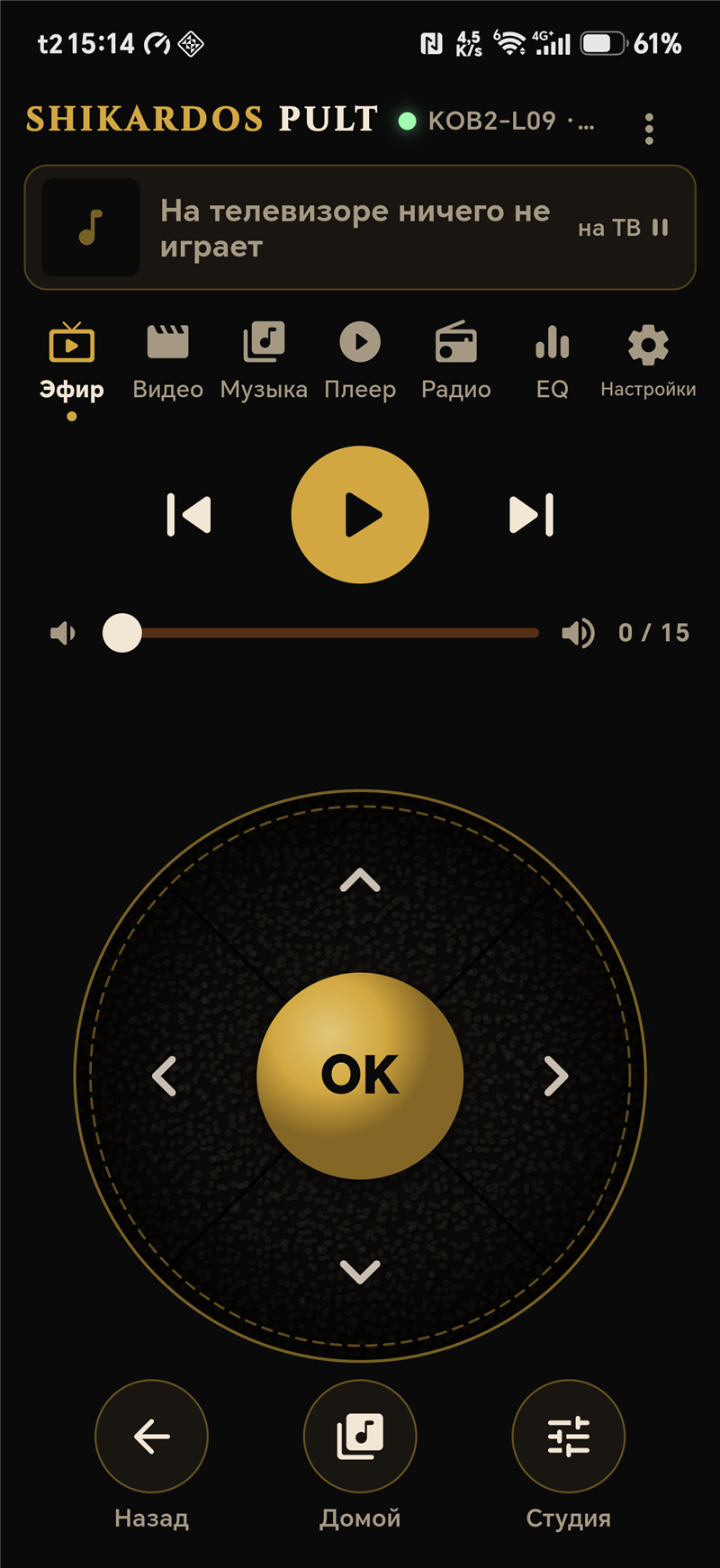
The Remote opens on your phone, with section navigation, playback and volume controls.
Use the Remote
- Select a section: Live TV, Video, Music, Player, Radio, EQ or Settings.
- Use the directional ring and OK to select items on the TV.
- The ⏮, ▶/⏸ and ⏭ buttons control playback; a separate slider controls volume.
- “Back” returns to the previous screen, “Home” opens music, and “Studio” opens the corresponding controls.
- To return to the normal phone interface, choose “Return to player” from the menu.
The result
The action takes place on the device controlled by the phone.
Reconnect to your TV
- Make sure both devices are connected to the same regular home network.
- Open SHIKARDOS on the TV and return to discovery on the phone.
- If necessary, select “Another TV” and pair again.
- If a code fails, enter the new code from the TV screen. It changes after three incorrect attempts.
The result
The phone can see the selected SHIKARDOS instance and its state again.