Sound settings: every control
Bass, treble, width, volume and room reflections. For each control: where to find it, what to change and what you will hear.
← Three equalizers: choose and enable one
Where to find the controls
In GEq and PEq
TONE — tonal character: CRYSTAL, GRAVITY, COMPRESSOR, LOUD.
STAGE — space and channels: WIDTH, XFEED, GAIN, PHASE.
REVERB opens a separate room-reflections window. Balance and PRE are separate controls.
In ORBITAL
TONE / STAGE: the depth of the five sides of the Orbit.
DYNAMICS: LOUD and COMPRESSOR. LEVEL: GAIN and VOLUME.
CHANNELS and HALL are separate Studio pages. GRAVITY and CRYSTAL open separately.
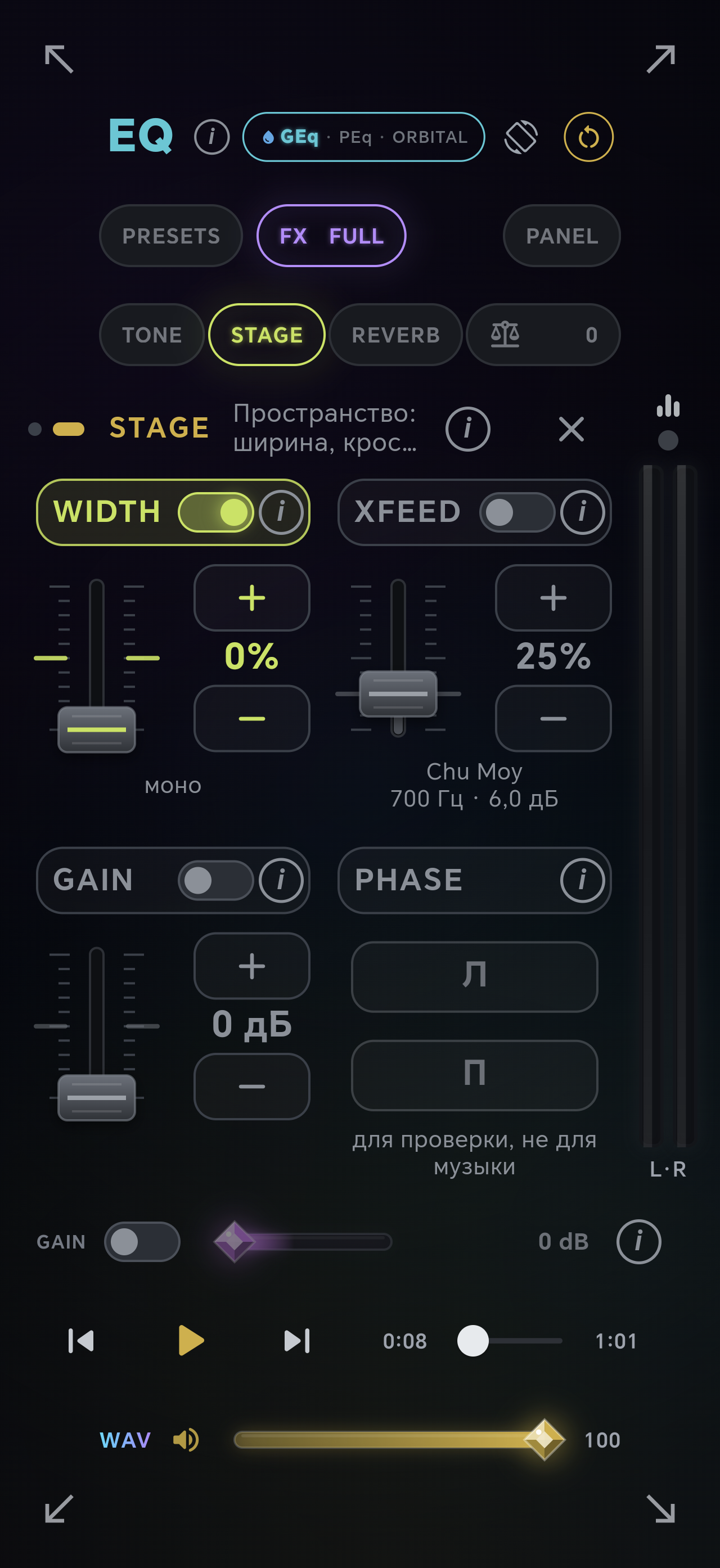
Your first adjustment: hear one change
Start with a familiar song and one tool.
Settings → Build your SHIKARDOS → Equalizers; then EQ.
The open screen and the applied equalizer are not necessarily the same.
How to use it
- On your phone or tablet, select the EQ you want in “Build your SHIKARDOS”. Play a familiar recording.
- Open GEq, PEq or ORBITAL. If “Apply equalizer” is shown, tap it. One selected EQ processes sound; each preserves its own set of settings.
- If processing is bypassed, tap the EQ letters at the top of the screen. They switch between processed and unprocessed sound. For a test in GEq/PEq, open STAGE, turn XFEED off and WIDTH on.
- Using headphones, compare WIDTH at 100% and 0% on the same stereo passage. Return to 100%. Keep the volume unchanged throughout the comparison.
What you will hear
At 0%, the channels combine into mono; at 100%, the original width returns. This confirms that you are adjusting the EQ that is actually processing sound.
The slider moves, but the sound does not change
Check the audio path before increasing the strength of an effect.
EQ; Settings → Build your SHIKARDOS; Player → format lines → Signal path.
Settings belong to the selected equalizer.
How to use it
- Make sure the required EQ is selected in your build and has been applied for listening.
- Check the EQ letters at the top of the screen and the tool's own switch. Tapping EQ temporarily bypasses processing for comparison; tapping again restores it. A nonzero slider position is not enough if the tool is switched off.
- Look at “Signal path”. DoP and unprocessed output are unsuitable for testing effects. For a simple test, use a standard PCM recording such as WAV or FLAC.
- Check the control's behavior: WIDTH cannot widen a true mono file; XFEED may be subtle on an already narrow soundstage; LOUD has almost no effect at the maximum accounted-for volume; the compressor may not engage during a quiet passage.
- GAIN is unavailable with direct VULAN USB output. VULAN itself does not mean that all processing is off: check the actual path and the state of the tools.
What you will hear
You can find the reason for a missing effect without compensating by randomly increasing other controls.
GRAVITY — bass control
Adds definition and weight to the low end.
GEq/PEq → TONE → GRAVITY. In ORBITAL, GRAVITY is a separate tool.
Strength: 0–100%. Use the switch to compare with the effect off.
How to use it
- Turn on GRAVITY and start with a low strength on a familiar bass part.
- Increase it until the bass has enough weight. Compare with GRAVITY off.
- If bass becomes boomy, masks the voice or distorts, reduce the strength and check other bass boosts.
What you will hear
Bass and kick drums gain weight. The result depends on your headphones and the recording itself.
CRYSTAL — clarity and high frequencies
Shapes the sound toward greater clarity and sparkle.
GEq/PEq → TONE → CRYSTAL. In ORBITAL, CRYSTAL is a separate tool.
Strength: 0–100%. Higher values increase the tool's effect.
How to use it
- Turn on CRYSTAL on a recording with cymbals, vocals or acoustic instruments.
- Add a little and compare with the effect off.
- If sibilants and cymbals become harsh, reduce the strength. Check whether other tools are also boosting treble.
What you will hear
Treble and fine details may become more noticeable; a dull recording may sound brighter.
WIDTH — stereo width
A separate control changes the difference between the left and right channels.
GEq/PEq → STAGE → WIDTH; also “Stereo width” in sound settings.
0% — mono; 100% — as recorded; 100–200% — widening.
How to use it
- Apply the required EQ and turn on WIDTH. Turn off XFEED for the comparison.
- Listen to a stereo passage on headphones at 100%, then at 0%. In mono, the channels combine.
- Return to 100% and gradually try higher values. Stop if the soundstage becomes unstable or sounds lose their natural positions.
- For the original width, return to 100% or switch the separate WIDTH tool off. Check other spatial effects separately.
What you will hear
On a stereo recording, instruments move closer to the center or spread farther apart. This does not move sound from one ear to the other.
XFEED — crossfeed for headphones
Mixes a frequency-shaped portion of each channel into the other.
GEq/PEq → STAGE → XFEED; “Crossfeed” in sound settings.
0–100% is a strength scale. When enabled, even 0% produces a mild effect; use the switch to turn it off completely.
How to use it
- Choose a stereo recording with one instrument mainly on the left and another mainly on the right.
- Turn on XFEED. Start with a low strength and compare with it off.
- Higher values bring the soundstage closer together. Compare the influence of WIDTH separately.
What you will hear
Hard left/right separation is softened. The difference may be subtle in a narrow or mono recording.
PHASE — channel polarity check
Inverts the polarity of the left or right channel.
GEq/PEq → STAGE → PHASE; ORBITAL → CHANNELS.
L / R: inversion of the selected channel is on or off.
How to use it
- For normal listening, leave both inversions off.
- When checking the polarity of a recording or audio system, switch one channel and compare.
- Restore the original state after the check. On the GEq/PEq control panel, the illuminated PHASE control can clear inversion for both channels.
What you will hear
Inverting one channel may sharply change the perceived center and bass.
BALANCE — left/right channel balance
Changes the relative levels of the two channels.
Equalizer → BALANCE; in ORBITAL → CHANNELS.
Center — equal balance; left / right — shift toward the desired channel.
How to use it
- Start at the center with a recording whose vocal is centered in the soundstage.
- If necessary, move the balance slightly toward the desired side.
- If a channel suddenly disappears, check the headphone plug and connection first, then balance and PHASE.
What you will hear
One channel becomes more prominent relative to the other. This is neither soundstage width nor frequency correction.
COMPRESSOR — control of loud peaks
Restrains loud moments, reducing their difference from quiet ones.
GEq/PEq → TONE → COMPRESSOR; ORBITAL → DYNAMICS.
Strength: 0–100%. The amber dB reading shows the actual attenuation at this moment.
How to use it
- Turn on the compressor for a recording with a noticeable difference between quiet and loud passages.
- Start with a low strength. Watch for attenuation during loud moments.
- Compare with it off, without also increasing GAIN or volume.
What you will hear
Loud peaks are restrained. The tool does not amplify quiet passages by itself, so the overall sound may become quieter.
LOUD — bass and treble at low volume
Adds bass and some treble according to the volume level the player can account for.
GEq/PEq → TONE → LOUD; ORBITAL → DYNAMICS.
Strength: 0–100% of the compensation. This is not a volume percentage.
How to use it
- First set a comfortable low listening volume, then turn on LOUD.
- Increase the strength gradually. The panel shows the actual bass and treble boosts in dB.
- Change the player volume and watch the effect change. At the maximum accounted-for volume, the boost approaches zero.
What you will hear
At low listening levels, bass and treble may become more noticeable without the same boost across the midrange.
PRE — headroom against overload
Lowers the input level in advance, leaving room for frequency boosts.
GEq/PEq → PRE / PREAMP on the equalizer panel.
0–100% is the share of calculated headroom applied. A separate dB reading shows the actual attenuation.
How to use it
- After choosing a preset or boosting bands, check the overload indicator and PRE.
- Turn on PRE and increase its strength to apply the required share of headroom.
- Check the actual dB value: with a flat curve it may remain at 0, even at 100% strength.
What you will hear
The level drops, leaving more headroom for frequency boosts before overload.
GAIN — additional gain
Additional gain in the standard Android audio path.
GEq/PEq → STAGE → GAIN; ORBITAL → LEVEL → GAIN; “Fixed gain” in settings.
From 0 to +6 dB. This tool is unavailable with direct VULAN USB output.
How to use it
- If a recording needs more level, turn on GAIN and add a little.
- Compare loud passages: with substantial gain, the limiter may restrain peaks.
- Turn off GAIN when the boost is unnecessary. Use volume for normal level adjustment.
What you will hear
The entire sound becomes louder. This does not boost just one frequency band.
VOLUME — overall volume
Sets the overall level at which you listen to music.
Player → volume; ORBITAL → LEVEL → VOLUME; your device's volume buttons.
0–100%. The player, operating system and external device may each have separate levels.
How to use it
- Set a comfortable volume before adjusting the sound.
- If playback is too quiet, check both the player volume and the phone or connected device volume.
- Keep the same comfortable volume when comparing equalizer settings and effects.
What you will hear
The music as a whole becomes quieter or louder.
REVERB — room reflections and space
Adds decaying reflections to a recording, creating a sense of a room.
GEq/PEq → REVERB window; ORBITAL → HALL.
Strength: 0–100% sets the amount of the effect, not the room size.
How to use it
- Turn on REVERB for a recording with a clearly audible voice or acoustic instrument.
- Choose a space and start with a low strength.
- Listen to the ends of phrases. If they overlap and lose clarity, reduce the strength or decay time.
What you will hear
An additional tail follows sounds, giving a dry recording a sense of space.
REVERB: Room, Hall, Concert, Stadium
Choose the character of the virtual space.
REVERB / HALL window → row of spaces.
Four types of space; strength and decay are set separately.
How to use it
- Compare Room and Hall at the same low strength.
- Then try Concert or Stadium if you want a stronger sense of space.
- After choosing a space, adjust decay time, then strength.
What you will hear
The reflections and the perceived space around the music change.
REVERB: decay time
Determines how long reflections linger after a sound.
REVERB / HALL window → decay.
Short · Medium · Long · Cathedral.
How to use it
- For fast phrases, start with a short or medium tail.
- For slow, sparse music, try a longer tail.
- If notes blur together, shorten the decay. If the reflections are too loud, reduce strength: that is a different setting.
What you will hear
This changes the duration of reverberation, not the speed of the song.