ORBITAL equalizer
Shape sound with one point: bass foundation, density, voice, treble and soundstage width.
How to open and enable it
Settings → Build your SHIKARDOS → ORBITAL equalizer → Done. Then open EQ → ORBITAL and tap “Apply equalizer”,if the button is shown.
Play a familiar song at a comfortable volume. If the EQ letters at the top are dim, check whether unprocessed comparison is enabled.
The ORBITAL screen
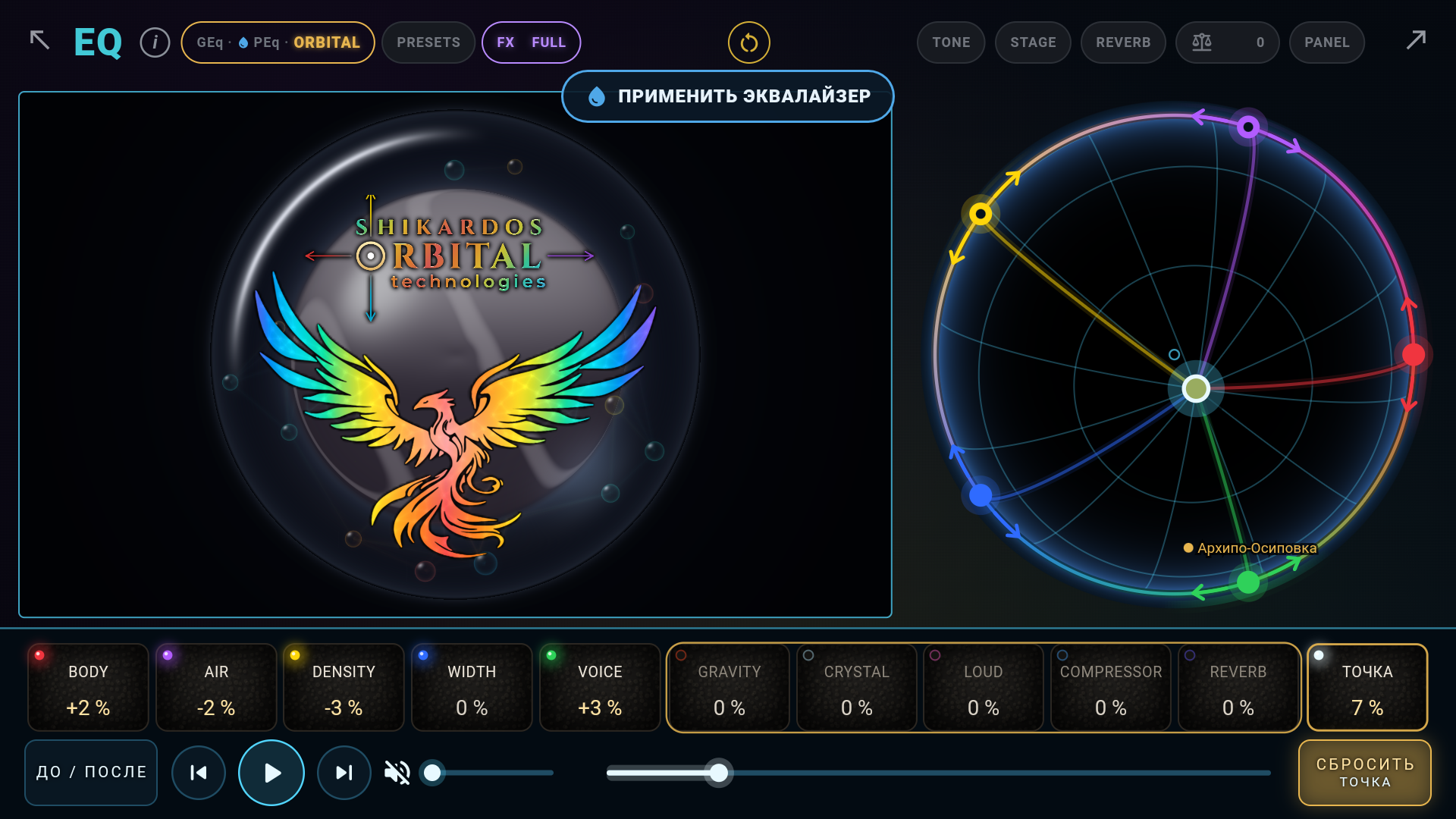
The light point inside the circle controls the blend of settings. The five colored points on the circumference represent sides of the sound. You can move them around the circumference too.
ORBITAL: the point, colored nodes and FLOW
The control point selects the blend; the colored nodes set the positions of the sides.
EQ → ORBITAL → circle and FLOW.
Direction selects the blend; distance from the center sets strength; colored nodes move around the circumference.
How to use it
- Move the control point inside the circle: changes are gentler near the center and stronger near the edge.
- Move a colored node along the circumference to reposition its side.
- Watch the sides' contributions in FLOW. Values may be negative and do not have to add up to 100%.
- Double-tap the circle to return the control point to the center. Check the lock if movement is blocked.
What you will hear
One point changes several linked parameters. Repositioning a colored node changes their blend.
BODY — tonal body
The low-frequency foundation of the sound.
EQ → ORBITAL → control point and colored sides.
This is one side of the Orbit. Its namesake slider in the Studio sets the depth of its effect.
How to use it
- Start with the control point at the center.
- Move the point toward the chosen side and compare: a positive contribution makes the sound fuller and warmer; a negative one makes it lighter and drier.
- Remember that other sides' contributions change at the same time. Stay closer to the center for fine adjustments.
What you will hear
The region around 100 Hz changes. The result depends on the combination of all sides.
DENSITY — fullness
Linked changes in the lower midrange.
EQ → ORBITAL → control point and colored sides.
This is one side of the Orbit. Its namesake slider in the Studio sets the depth of its effect.
How to use it
- Start with the control point at the center.
- Move the point toward the chosen side and compare: a positive contribution makes the sound richer and denser; a negative one makes it lighter and more transparent.
- Remember that other sides' contributions change at the same time. Stay closer to the center for fine adjustments.
What you will hear
The regions around 250 and 630 Hz change. The result depends on the combination of all sides.
VOICE — vocal presence
Presence and intelligibility in the midrange.
EQ → ORBITAL → control point and colored sides.
This is one side of the Orbit. Its namesake slider in the Studio sets the depth of its effect.
How to use it
- Start with the control point at the center.
- Move the point toward the chosen side and compare: a positive contribution brings the sound forward and makes it more pronounced; a negative one makes it softer and calmer.
- Remember that other sides' contributions change at the same time. Stay closer to the center for fine adjustments.
What you will hear
The region around 3 kHz changes. The result depends on the combination of all sides.
AIR — treble air
The character of the upper spectrum.
EQ → ORBITAL → control point and colored sides.
This is one side of the Orbit. Its namesake slider in the Studio sets the depth of its effect.
How to use it
- Start with the control point at the center.
- Move the point toward the chosen side and compare: a positive contribution makes the sound brighter and more sparkling; a negative one makes it darker and softer.
- Remember that other sides' contributions change at the same time. Stay closer to the center for fine adjustments.
What you will hear
The high shelf from 6 kHz changes. The result depends on the combination of all sides.
WIDTH in ORBITAL — space
The Orbit side that changes stereo width.
EQ → ORBITAL → control point and colored sides.
This is one side of the Orbit. Its namesake slider in the Studio sets the depth of its effect.
How to use it
- Start with the control point at the center.
- Move the point toward the chosen side and compare: a positive contribution widens the sound; a negative one narrows it.
- Remember that other sides' contributions change at the same time. Stay closer to the center for fine adjustments.
What you will hear
The difference between the left and right channels changes. The result depends on the combination of all sides.
ORBITAL: side depth in TONE and STAGE
Limits the contribution of a side calculated from the point's position.
ORBITAL → Studio → TONE (BODY, AIR, VOICE) or STAGE (DENSITY, WIDTH).
0% removes that side's contribution; 100% applies its full calculated contribution. These are not direct gain or width percentages.
How to use it
- First move the control point so the desired side has a nonzero contribution.
- Reduce that side's depth and listen as its effect weakens.
- Return to 100% to hear its full contribution as calculated by the Orbit.
What you will hear
You can keep the selected blend while making one component more subtle.
Inside the ORBITAL Studio
TONE — BODY, AIR and VOICE depth. STAGE — DENSITY and WIDTH depth. These limit the sides' effects and work together with the point's position.
DYNAMICS — compressor and LOUD. LEVEL — GAIN and VOLUME. CHANNELS — channel controls; HALL — reverberation. FLOW shows the sides' contributions; METER — meters.
Example: make a voice more expressive
- Start with the control point at the center.
- Move it slightly toward VOICE and listen to a familiar voice. Other sides change along with VOICE: this is a linked adjustment.
- If the change is too strong, move the point closer to the center or reduce VOICE depth in the Studio.
- Double-tap the circle to return the point to the center. To compare all processing, tap the EQ letters: the circle's center does not switch off separately enabled effects.
On-screen buttons: what they do
Additional controls
Important: the direct 0–200% WIDTH control in GEq/PEq and WIDTH side depth in ORBITAL are different settings. Understanding ORBITAL depth.
Select the control name you need. Its explanation opens immediately.
Comparison and reset
Tap the large EQ letters at the top of the equalizer screen EQto temporarily bypass processing. Tap again to restore it. This is a processed/unprocessed comparison, called “CLEAN” in other views.
The control positions are preserved. Listen to the same passage at the same volume. Do not use reset if you only want to compare the sound.
The circular-arrow button resets sound settings. Read the confirmation and proceed only if you want to start again. Save complex settings beforehand.
GEq also has a separate “RESET” above its bands. Resetting bands and resetting the entire active sound section are different actions.
Explore the principle in an interactive diagram
The website diagram helps explain the principle. It does not change your app's settings or process music.
Open the ORBITAL diagram →