Graphic equalizer (GEq)
Adjust bass, midrange and treble with individual sliders. Choose 10, 15 or 31 bands.
How to open and enable it
Settings → Build your SHIKARDOS → Graphic equalizer → Done. Then open EQ → GEq and tap “Apply equalizer”,if the button is shown.
Play a familiar song at a comfortable volume. If the EQ letters at the top are dim, check whether unprocessed comparison is enabled.
The graphic equalizer screen
From top to bottom
- GEq / PEq / ORBITAL — equalizer selection.
- PRESETS — built-in and saved settings.
- TONE / STAGE / REVERB — additional sound tools.
- “Apply equalizer”, — appears when another EQ is currently processing sound.
- 10 / 15 / 31 — number of bands.
- Vertical bands — gain at the selected frequencies.
- At the bottom — playback and volume.
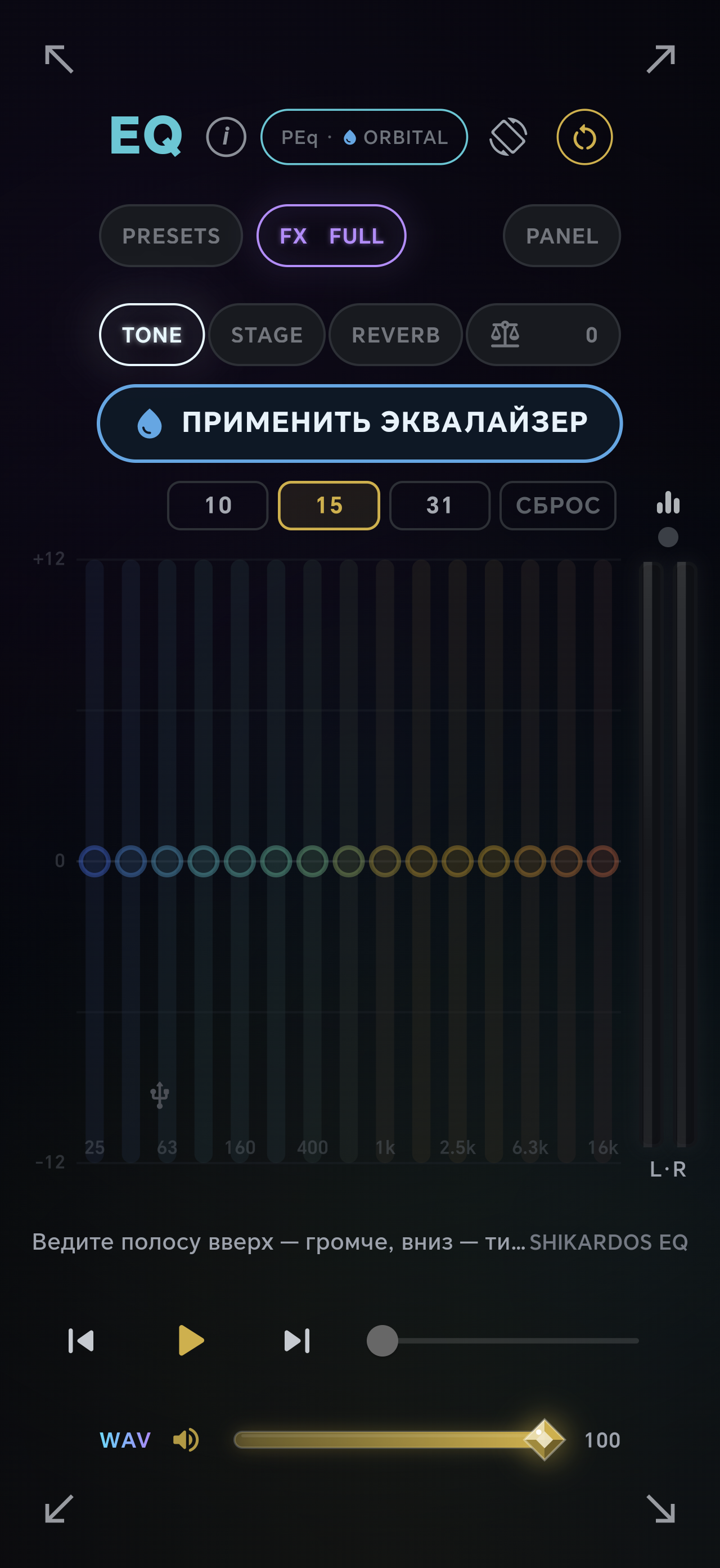
GEq bands: 10, 15 or 31
Each slider boosts or cuts its own frequency region. Choose the number of bands above the graph.
EQ → GEq → band graph.
10 / 15 / 31 — number of bands. Hz and kHz below them indicate frequencies. 0 dB — no change; positive — boost; negative — cut.
How to use it
- Apply GEq first. Start with a flat curve, or save your current settings before making changes.
- Begin with 10 bands. 15 and 31 place controls more closely together for more detailed adjustment. The frequencies below the bands change with the selected band count.
- In 10-band mode: 32–64 Hz is the deepest bass; 125–250 Hz adds weight and warmth. Too much in this region can sound boomy.
- 500 Hz–1 kHz is the midrange and the body of many instruments; 2–4 kHz affects presence and intelligibility, or harshness when overdone.
- 8–16 kHz contributes brightness and air. The audible upper limit depends on the recording, headphones and your hearing.
- Move one band slightly, compare, and only then move to the next. If there is too much bass, try reducing the low end rather than boosting everything else.
What you will hear
The frequency balance changes, not an isolated instrument: voice, guitar and drums may all share a frequency.
Example: bass sounds too boomy
- Select 10 bands. Find 125 and 250 Hz.
- On a familiar passage, lower one of these bands a little, for example by 1–2 dB. Listen for tighter bass without losing vocal warmth.
- Return the band to 0 dB and compare. If a small cut sounded better, keep it; adjust the neighboring band separately.
This is an example of how to investigate, not a universal preset: boominess may occur elsewhere with different recordings and headphones.
On-screen buttons: what they do
Additional controls
Select the control name you need. Its explanation opens immediately.
Comparison and reset
Tap the large EQ letters at the top of the equalizer screen EQto temporarily bypass processing. Tap again to restore it. This is a processed/unprocessed comparison, called “CLEAN” in other views.
The control positions are preserved. Listen to the same passage at the same volume. Do not use reset if you only want to compare the sound.
The circular-arrow button resets sound settings. Read the confirmation and proceed only if you want to start again. Save complex settings beforehand.
GEq also has a separate “RESET” above its bands. Resetting bands and resetting the entire active sound section are different actions.
Explore the principle in an interactive diagram
The website diagram helps explain the principle. It does not change your app's settings or process music.
Open the GEq diagram →